Layouts
Layouts save your panel arrangements and configurations, allowing you to quickly recreate specific views and share them with your team. They're stored in the cloud and synced across sessions.
What Layouts Save
A layout captures:
- All panels in layout tabs (Plot, Table, Log, Value, and Action)
- Panel positions and sizes in the grid
- Panel settings - Fill area, line styles, display options
- Signal selections, scopes, and colors - Which signals are shown, whether they are portable or trace/agent-scoped, and their visualization colors
- Panel titles - Custom names for each panel
- Panel descriptions - Optional descriptions for documenting panel purpose
Layouts do NOT include:
- The actual data (only configuration)
- Connection settings
- Time range selections
- Runtime-only segment instance IDs from the current session
- Extension tabs
- Settings tabs
Manual Saving Only
Layouts are never auto-saved. All changes require explicit save actions via the Save or Save As buttons.
Multi-Trace Support
Layouts can work with multiple traces simultaneously. When configuring signals in panels, you can choose between:
- Portable signals - Work with any trace and/or agent that contains matching signal paths
- Scoped signals - Tied to a specific trace and/or agent
Portable configurations are useful when sharing layouts with team members who may load different trace files with similar signal structures.
Saved layouts rebind to current data
Layouts save logical signal bindings and colors, not transient segment-instance IDs. When you load a layout, Zelos resolves each saved signal against the currently open traces and/or agents using the saved path and scope.
Editing a Loaded Layout
Once a layout is loaded, you can keep refining it before saving again.
Rearranging Panels
- Move a panel within the current tab by dragging its header
- Resize a panel by dragging its edges or corners
- Move a panel to another tab by dragging its header onto that tab
Adding Signals to an Existing Layout
Signal drag-and-drop uses two different intents:
| Drop location | Result |
|---|---|
| Center of a Plot, Table, Log, or Value panel | Add the signal to that panel |
| Top or bottom band of a panel | Insert a new Plot panel row at that boundary |
| Gap between rows or empty layout space | Insert a new Plot panel row at the nearest row boundary |
New rows default to Plot
When you create a panel directly from a signal, Zelos creates a new Plot panel. To start with a Table, Log, Value, or Action panel, first create that panel from Add Panel, then drop data into it.
Double-Click Behavior
Double-clicking a signal in the sidebar creates a new Plot panel at the bottom of the active layout tab.
Managing Layouts
Access layouts from the right sidebar (toggle with Cmd+J / Ctrl+J). The Layouts section shows all your personal and shared team layouts.
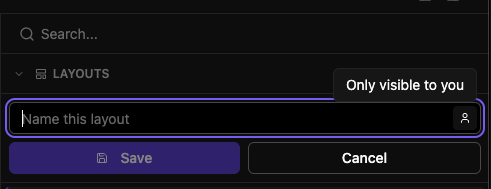
Creating a Layout
- Arrange panels in your workspace exactly as desired
- Open the right sidebar (Cmd+J / Ctrl+J)
- Click Save As in the Layouts section
- Enter a layout name (max 100 characters)
- Toggle Personal/Shared:
- Personal (👤) - Only visible to you
- Shared (👥) - Visible to your entire team
- Click Save
Loading a Layout
Click any layout name in the right sidebar to load it. The layout replaces your current panel arrangement.
Recent Tracking
Recently used layouts appear at the top for quick access. The app tracks your last 10 layouts.
Updating a Layout
When you have a layout loaded and make changes:
- Notice the modified indicator (amber dot) next to the layout name
- Click Save to update the existing layout with your changes
- The Save button is only enabled when unsaved changes exist
Alternative: Use Save As to create a new layout instead of overwriting.
Layout Actions
Click the ⋮ menu next to any layout for additional actions:
Rename
- Edit the layout name inline
- Press
Enterto save,Escto cancel - Click outside to cancel
Share with Team
- Convert a personal layout to shared
- Makes it visible to your entire team
- Only available for personal layouts
Delete
- Permanently remove the layout
- Cannot be undone
Visual Indicators
Active Layout
- Colored left border on the active layout
- Shows which layout is currently loaded
Modified Indicator
- Amber dot appears when unsaved changes exist
- Only shows for the active layout
- Disappears after saving
Personal vs Shared
- 👤 icon = Personal layout
- 👥 icon = Shared layout
- Shown next to layout name
Hover Information
Hover over any layout to see:
- Layout name
- Creator email
- Creation date
- Layout ID
- Shared status
- Unsaved changes status (if applicable)
Search and Filter
The right sidebar search filters layouts by:
- Layout name
- Creator email
- Layout ID
Type in the search box at the top of the right sidebar to filter all layouts.
Keyboard Shortcuts
| Action | Shortcut |
|---|---|
| Toggle right sidebar | Cmd+J / Ctrl+J |
| Confirm rename | Enter |
| Cancel rename | Esc |
| Focus search | Ctrl+F |
Best Practices
Personal Layouts
Use for personal workflows, experiments, and work-in-progress configurations.
Shared Layouts
Create shared layouts for:
- Standard debugging scenarios
- Common test configurations
- Team onboarding views
- Customer demonstration setups
Panel Descriptions
Add descriptions to panels to document their purpose. This is especially helpful when sharing layouts with team members who may not be familiar with the specific signals or configuration choices.
Naming Conventions
Use descriptive names that indicate:
- What the layout shows (e.g., "Motor Diagnostics")
- When to use it (e.g., "Startup Sequence")
- Who it's for (e.g., "QA Test Suite")
Next Steps
-
Understand different panel options
-
Learn about the right sidebar and layout management
-
Master workspace features and tabs