Timeline
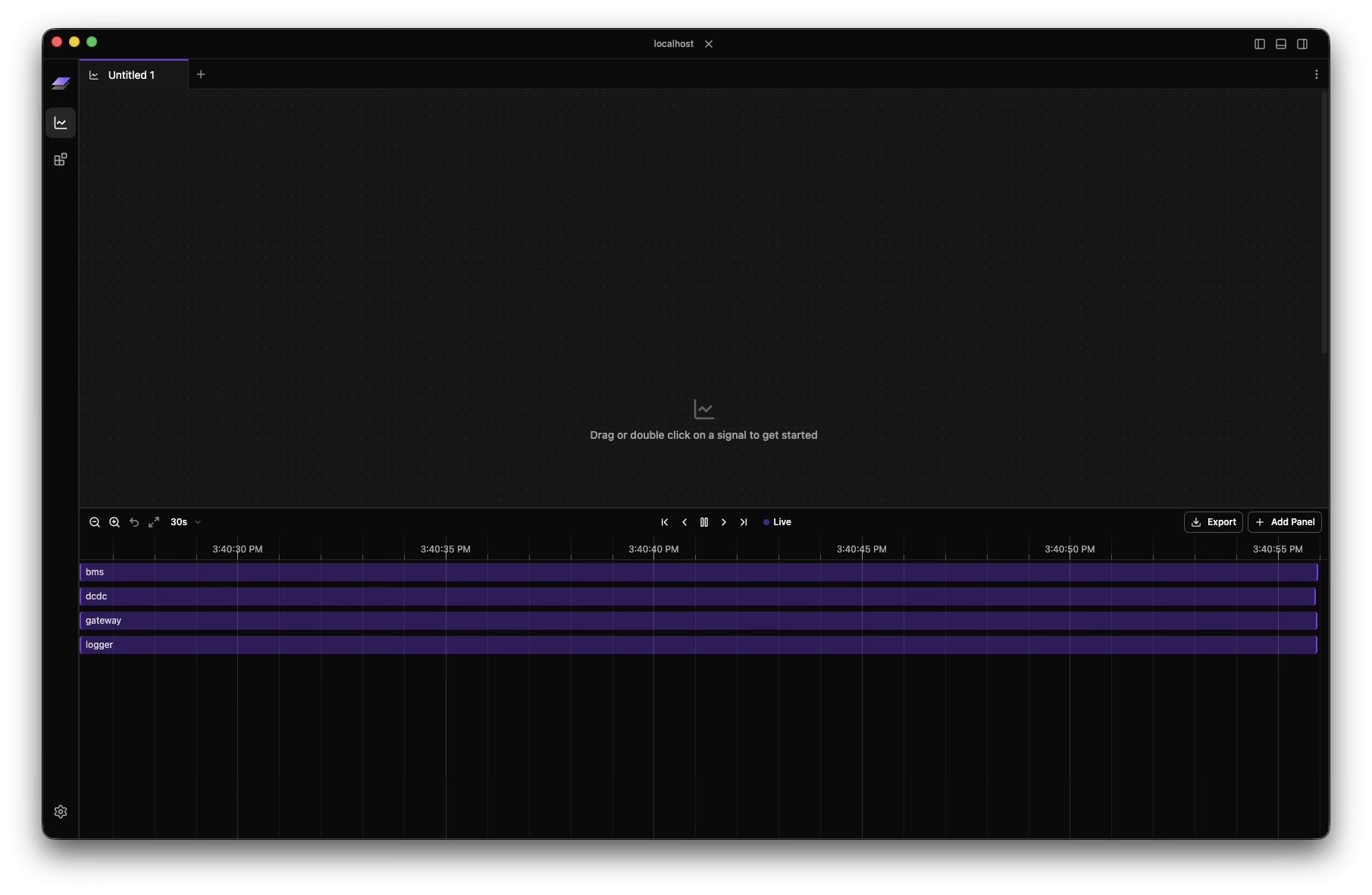
The timeline is the time-navigation layer for the entire workspace. It controls what moment your panels are showing, whether you are streaming live data or analyzing one or more trace files.
In practice:
- In live follow, the view tracks the newest data.
- In paused mode, the timeline becomes cursor-driven and all panels follow the same cursor.
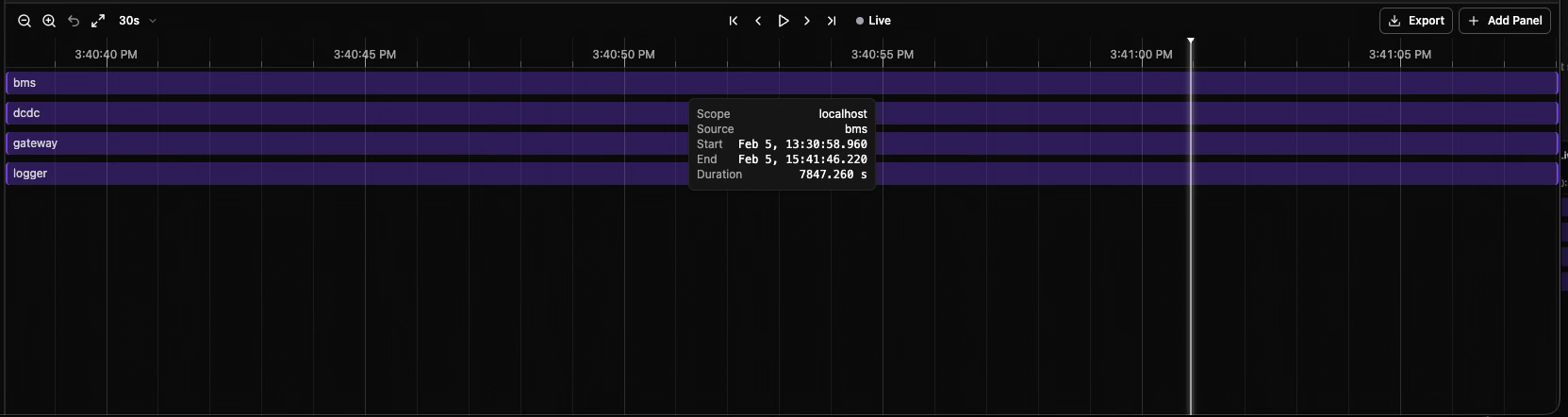
- In trace mode, playback and scrubbing are driven by the timeline cursor.
Layout
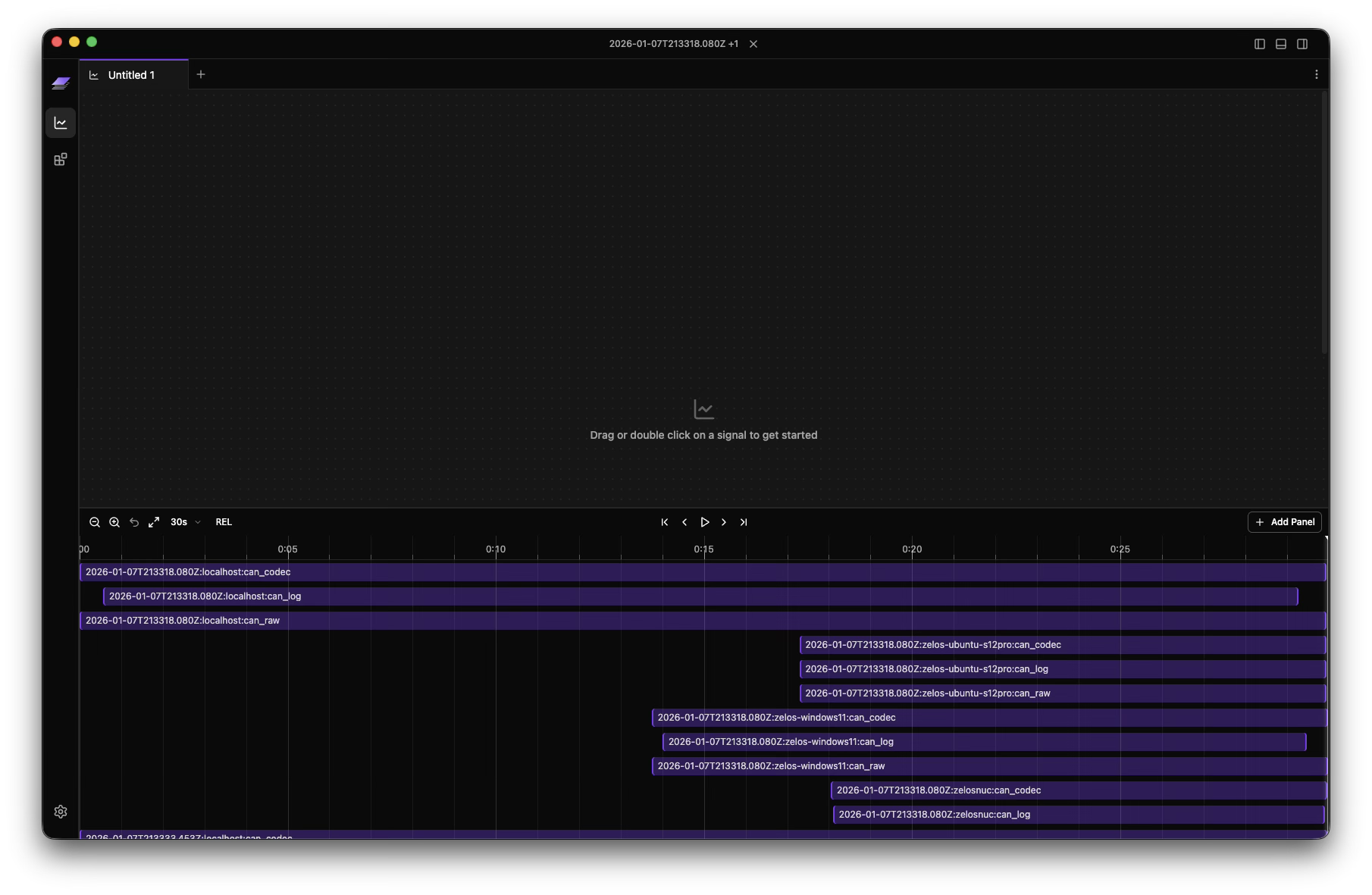
The timeline has two layers:
- Control row (top): zoom, transport, time-mode, export, and add-panel actions
- Ruler + lanes (bottom): tick marks, cursor, and optional segment lanes
Expand and Collapse
The timeline starts collapsed. You can:
- Drag the resize handle at the top of the timeline
- Use the timeline toggle in the title bar
- Keep it collapsed for ruler/cursor only, or expand it to see segment lanes


Controls
View Controls (Left)
- Zoom Out / Zoom In - Change time window scale around the cursor/pointer
- Undo Zoom - Step back through recent zoom/pan history
- Fit All (
0) - Fit the full available data extent - View Window Preset - Choose fixed windows (30s, 1m, 5m, ... 24h)
- ABS / REL (multi-trace only) - Toggle absolute vs relative time mode
Transport Controls (Center)
- Jump to Start (
Home) - Step Back (
Left) - HoldShiftfor larger step - Play / Pause (
Space) - Step Forward (
Right) - HoldShiftfor larger step - Jump to End (
End)
In live workspaces, a Live status button appears next to transport controls:
- Click it to return from paused inspection back to live follow
- Use
Escas a shortcut to return to live
Actions (Right)
- Export (live mode): export the selected live time range to a
.trztrace - Add Panel: create a new panel directly from the timeline toolbar
Cursor and Navigation
The timeline uses a single shared cursor for paused/trace analysis.
Mouse and pointer interactions:
- Left click/drag: scrub cursor (auto-pauses live follow)
- Alt + left drag: select a range and zoom to it
- Middle-click drag: pan the current view window
- Ctrl/Cmd + wheel (or pinch): zoom at pointer position
- Shift + wheel or horizontal wheel: pan horizontally
- Double-click timeline: undo one zoom step


Setting Cursor from Panels
You can also set the same shared cursor from panel content:
- Plot panel: right-click to jump cursor to a plotted timestamp
- Plot panel (paused): drag the plot cursor handle to scrub
- Log panel: right-click a log row to jump cursor to that entry time
Playback Behavior
Playback is cursor-driven:
- Press Play to advance the shared timeline cursor at your configured app framerate
- During playback, Zelos streams data from replay windows (snapshot + changes) to keep motion smooth
- During scrubbing/paused inspection, Zelos queries exact cursor-time values with step-before semantics
- In paused zoomed views, lookups are bounded to the visible window to avoid pulling stale values from far in the past
Segment Lanes (Expanded View)
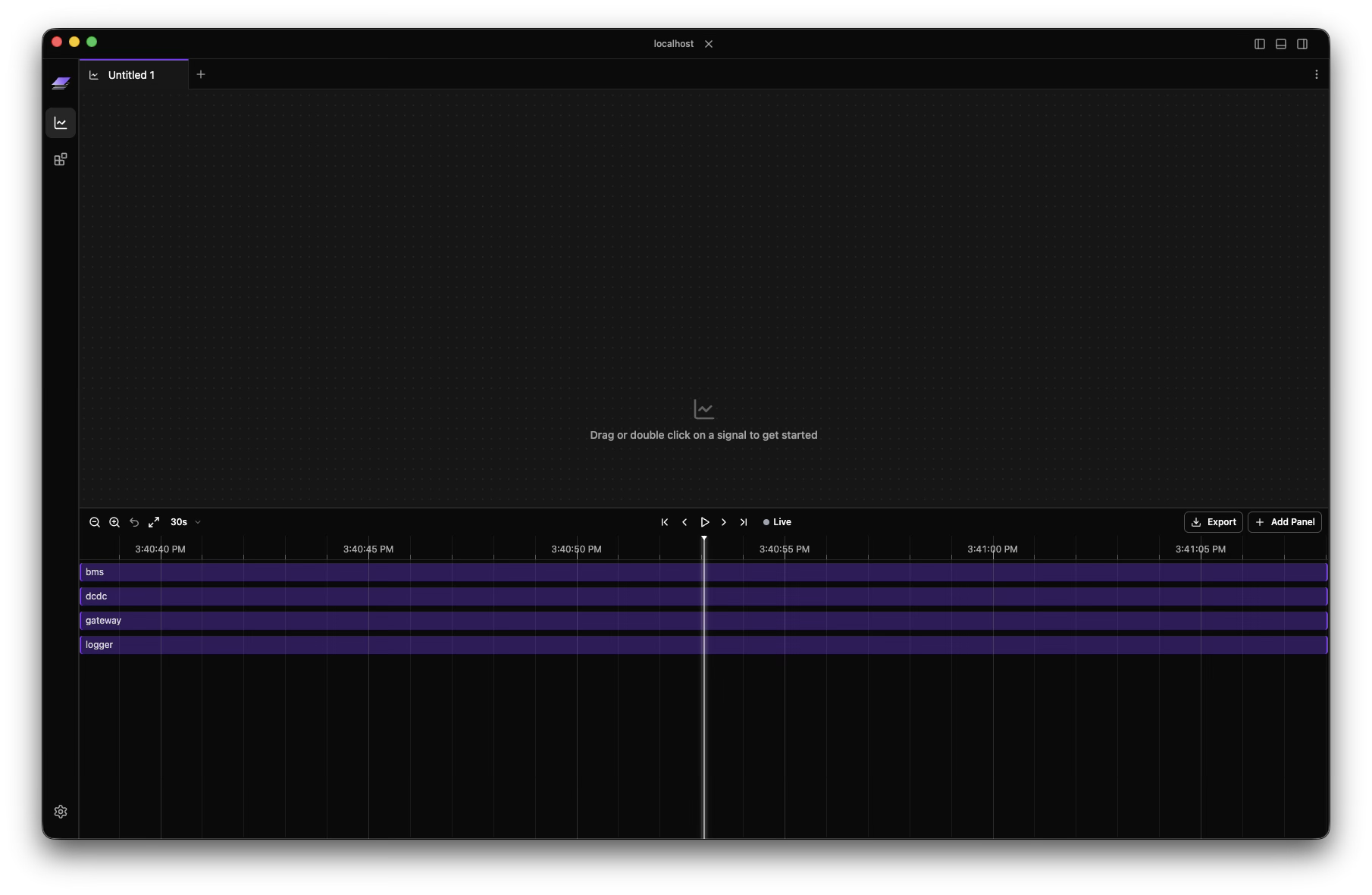
When expanded, the timeline shows segment lanes by source/scope:
- Segment blocks show active time ranges per source
- Open/active segments are visually distinguished
- Overlapping segments are highlighted
- Hover a segment to see scope, source, start, end, and duration
Time Modes for Multi-Trace
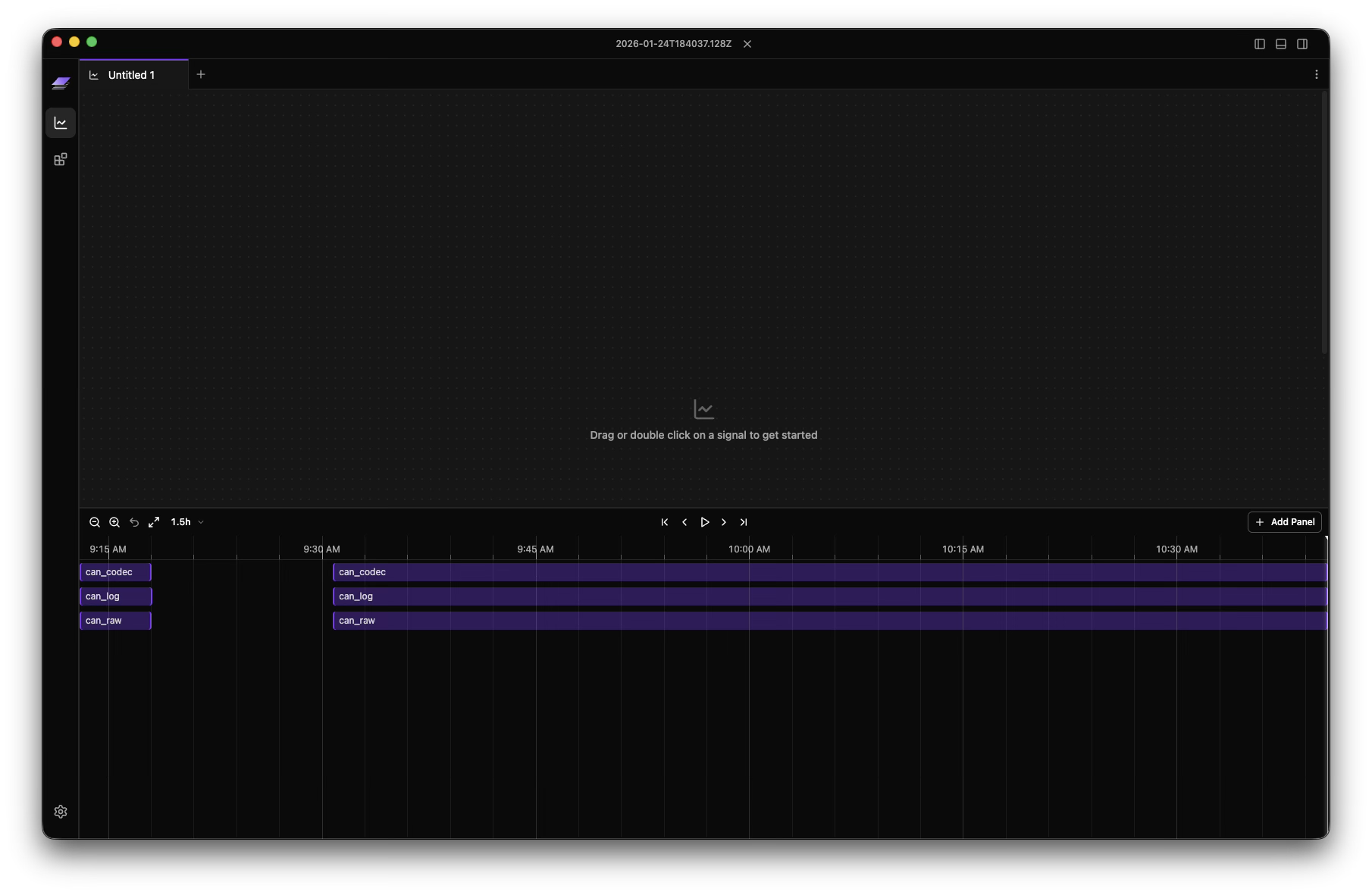
When multiple traces are open, you can switch between:
Absolute (ABS)
- Uses real capture timestamps
- Best for wall-clock correlation and incident reconstruction
Relative (REL)
- Aligns traces so each starts at
t=0 - Best for side-by-side run comparison
- Makes offset/duration comparison much easier
Keyboard Shortcuts
| Action | Shortcut |
|---|---|
| Play / Pause | Space |
| Step backward | Left |
| Step backward (large) | Shift + Left |
| Step forward | Right |
| Step forward (large) | Shift + Right |
| Jump to start | Home |
| Jump to end | End |
| Zoom in | Shift + + |
| Zoom out | Shift + - |
| Fit all | 0 |
| Return to live (when paused in live mode) | Esc |
Panel Synchronization
All timeline interactions are global to the active layout tab:
- Plot, table, value, and log panels stay time-aligned
- Cursor scrubbing updates all panels together
- Zoom/pan updates query ranges consistently across panels
Next Steps
-
Create time-based visualizations
-
Configure timeline behavior