Log Panel
The Log Panel displays structured log data in real-time with powerful search, filtering, and formatting capabilities.
Overview
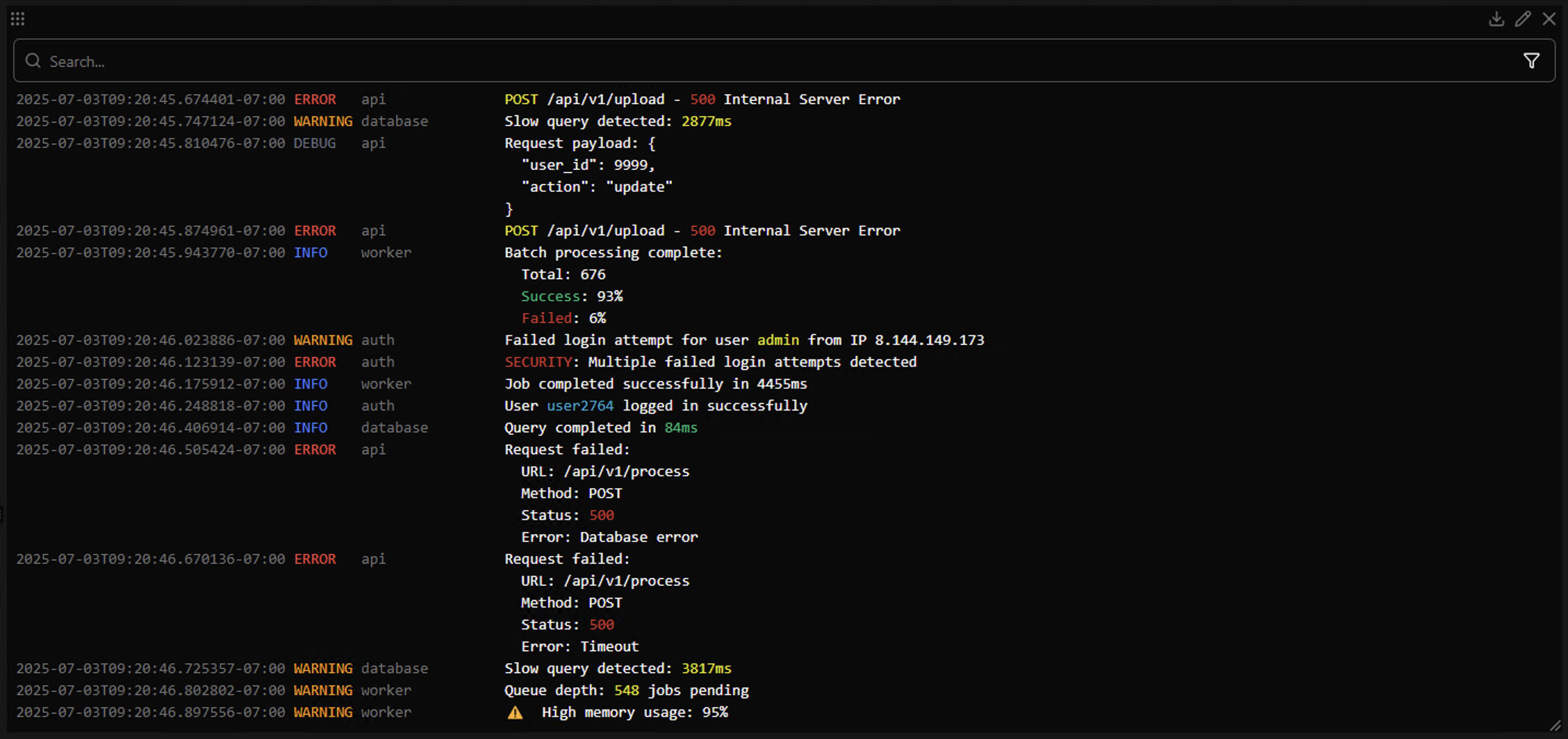
The log panel presents log entries in chronological order with configurable columns for timestamps, log levels, sources, and messages. Each log entry maintains its original formatting including ANSI color codes for terminal-style output.
Basic Usage
Adding Log Sources
Drag and drop log signal sources from the signal tree directly onto the log panel. Each source will contribute log entries with level, source name, and message information.
Log Entry Format
Each log entry displays up to four components:
- Timestamp - Precise timestamp in local time format (HH:MM:SS.mmm)
- Level - Log severity level (TRACE, DEBUG, INFO, WARN, ERROR, CRITICAL)
- Source - Component or service name that generated the log
- Message - The actual log message with ANSI formatting preserved
Auto-Scroll Behavior
The panel automatically scrolls to show new log entries as they arrive. Auto-scroll intelligently pauses when you scroll up to examine older entries and resumes when you return to the bottom.
Jump Timeline Cursor from Logs
You can jump the global timeline cursor directly from a log entry:
- Right-click any log row
- The timeline cursor moves to that entry timestamp
- Other panels (plot/table/value) sync to that time
- If you scroll away while cursor-follow is active, use Jump to cursor to re-center on the cursor entry
Search Functionality
Basic Search
Use the search bar at the top to find specific log entries:
- Type to search - Results update instantly as you type
- Highlight terms - Matching text is highlighted as you type
- Search scope - Searches through the plain text version of log messages
- Clear search - Click the X button or clear the input to reset

Advanced Search Patterns
The search supports glob patterns for complex queries:
Wildcard Patterns
error*- Matches entries starting with "error"*connection*- Matches entries containing "connection"user?.log- Matches "user1.log", "userX.log", etc.
Keyboard Shortcuts
- Ctrl/Cmd + F - Focus the search bar from anywhere in the panel
- Escape - Clear search and return focus to the panel
Filtering System
Accessing Filters
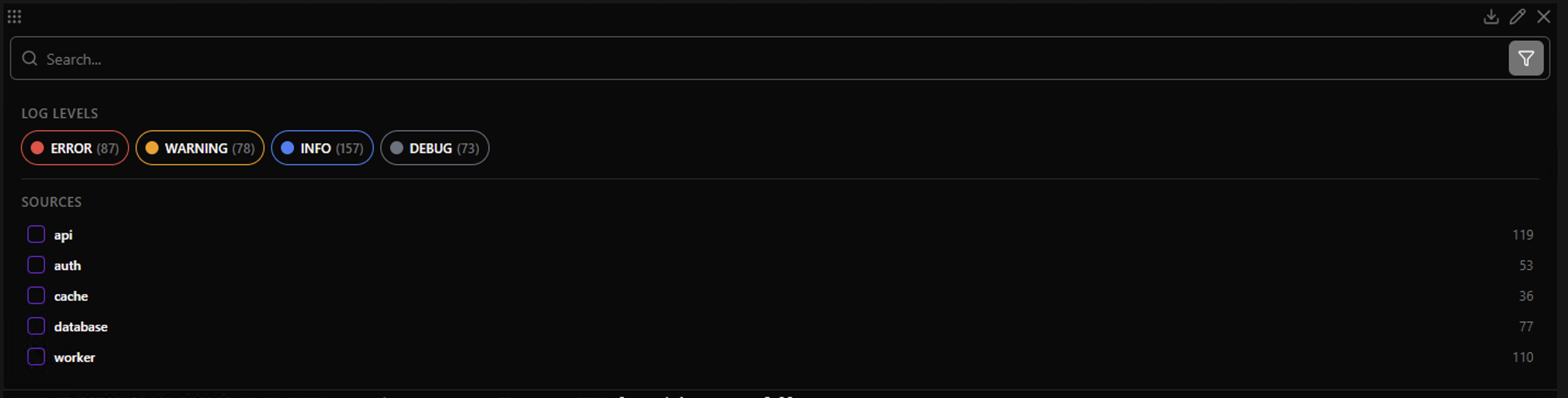
Click the filter icon in the search bar to open the filter panel. The icon shows a badge with the number of active filters.
Log Level Filtering
Filter by log severity levels:
Level Selection
- Check/uncheck levels - Only selected levels are shown
- Color indicators - Each level has a distinctive color
- Entry counts - Shows number of entries for each level
- Clear levels - Quick button to clear all level filters
Level Colors
- TRACE/VERBOSE - Gray (lowest severity)
- DEBUG - Light gray
- INFO - Blue
- WARN - Yellow/orange
- ERROR - Red
- CRITICAL/FATAL - Dark red (highest severity)
Agent Filtering
Filter by agent/producer when logs come from multiple live agents or traces:
Agent Management
- Alphabetical listing - Agents sorted alphabetically
- Entry counts - Shows number of entries per agent
- Checkbox selection - Multi-select agents to display
- Clear agents - Quick button to clear all agent filters
Source Filtering
Filter by the component or service that generated logs:
Source Management
- Alphabetical listing - Sources sorted alphabetically
- Entry counts - Shows number of entries per source
- Checkbox selection - Multi-select sources to display
- Clear sources - Quick button to clear all source filters
Filter Behavior
- No selection - When no filters are selected, all entries are shown
- Within one category - Multiple selected levels/agents/sources are matched as OR
- Across categories - Active level/agent/source filters combine as AND
- Persistent filters - Filter selections are saved with the panel
- Search interaction - Starting a search automatically closes the filter panel
Customization and Settings
Display Options
Access through the panel settings:
Column Visibility
- Show Timestamps - Toggle timestamp display
- Show Log Levels - Toggle level column display
- Show Sources - Toggle source column display
Font Settings
- Font Size - Choose from Small to 3XL sizes
Buffer Management
- Buffer Size - Maximum number of log entries to retain
- Auto Scroll - Automatically scroll to new entries
Level Color Customization
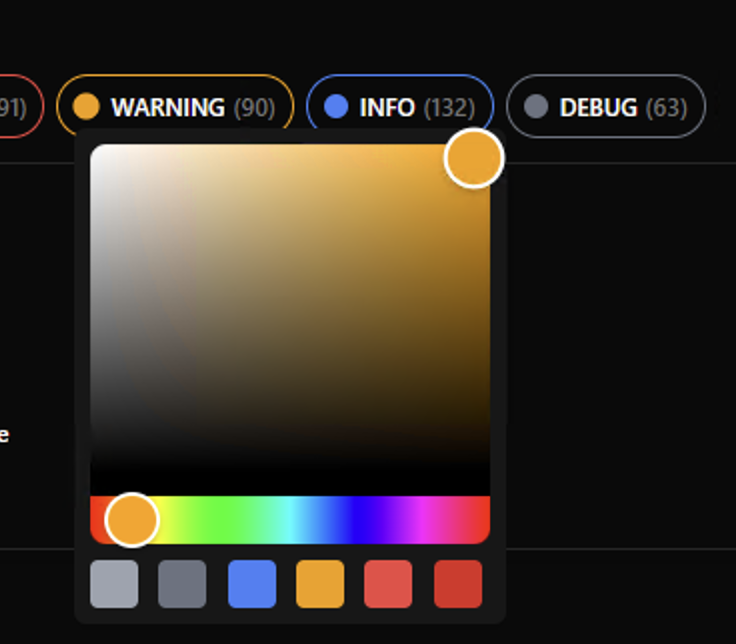
Customize colors for each log level:
- Open filter panel and locate the desired level
- Click the color circle next to the level name
- Choose from palette or use the color picker for custom colors
- Colors persist across sessions and are saved with the panel
ANSI Color Support
Terminal Formatting
The log panel preserves and displays ANSI escape sequences from terminal output:
Supported Features
- Foreground colors - Text colors
- Background colors - Background colors
- Text formatting - Bold, dim, italic, underline
- Reset sequences - Proper handling of color resets
Display Behavior
- Original formatting - Colors and styles displayed as intended
- Searchable text - Search operates on plain text without ANSI codes
- Copy behavior - Text selection preserves visual formatting
Advanced Features
Buffer Management
- Configurable buffer - Set maximum entries to retain in live mode
- Automatic pruning - Old entries removed when buffer limit exceeded
Time Range Integration
- Live mode - Shows logs from recent time window
- Historical mode - Displays logs from selected time range
Export Data
The log panel supports exporting data in multiple formats:
- CSV - Tabular format with timestamp, level, source, and message columns
- JSON - Structured format with metadata and log entry arrays
- TXT - Plain text format preserving original message formatting
Exports use the panel's configured signals and the selected timeline range. View filters (level/source/search) are not applied to exported data.
Buffer Limitations
In live mode, the buffer size limits how many log entries are retained. Very high-volume logging may cause older entries to be pruned. Increase buffer size or apply filters to retain more relevant entries.